Three things to do
The whole process, before we go into detail.
First
Open your Cockpit
Log in, or register free. Your Cockpit is where everything happens.
Then
Open your boat
Go to your boat's page and click Manage boat.
Finally
Add your media
Pictures, video files, and links to video on YouTube.
Before you start
Four things worth having ready, so nothing stops you halfway.
- Your boat must already be registered in the HR-Club database. If she is not, add her from your Cockpit first.
- Have the pictures on the device you are sitting at. Photos straight off a phone work fine.
- Pick your best single picture before you start. That one becomes the featured image, and it is the one everybody sees first.
- Have your video ready either as a file, or as a link if it is already on YouTube.
Get into your Cockpit
Steps 1–2Log in, or create an account
Already a member? Log in with your usual details. New to the club? Registration is free and takes a minute.
Log in · Create an accountOpen your Cockpit
The Cockpit is your personal dashboard. Everything in this guide happens from here.
Go to your CockpitOpen your boat
Steps 3–4Go to your boat's page
In your Cockpit, click My boats and choose the boat you want to work on. You land on her Basic data page.
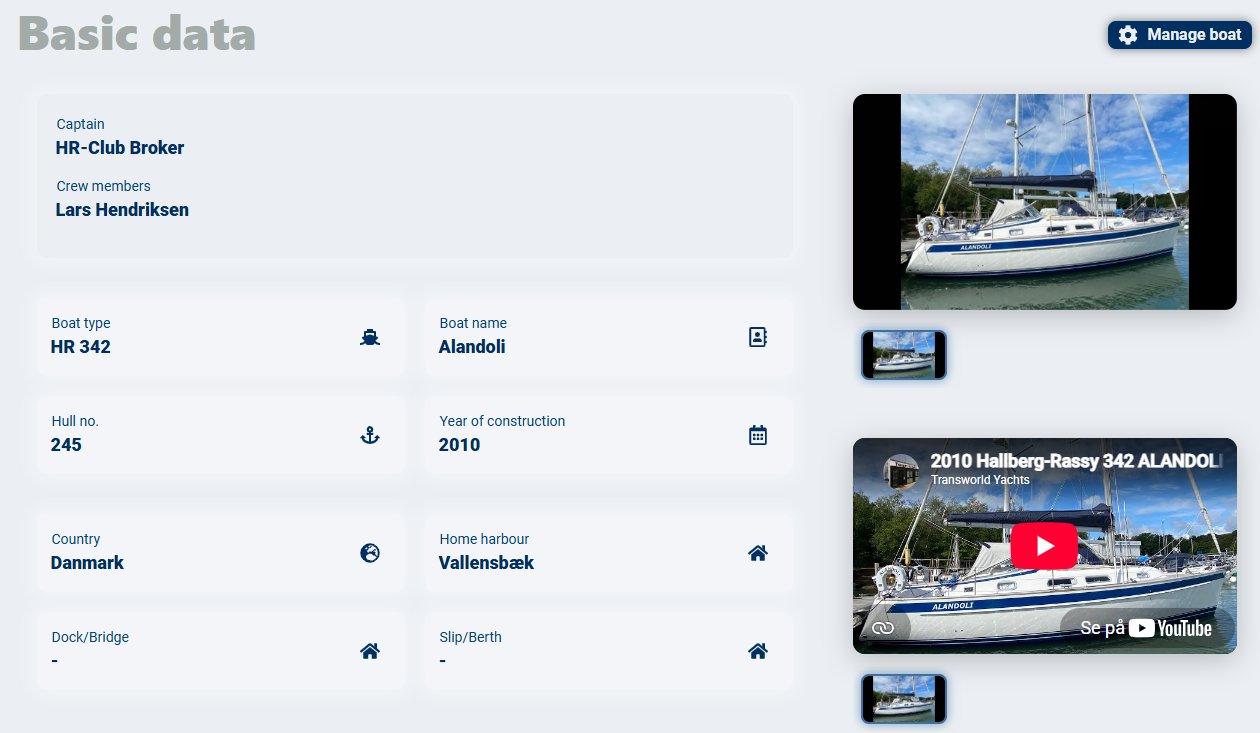
Click Manage boat
The button sits in the top right corner of the page.
Add your media
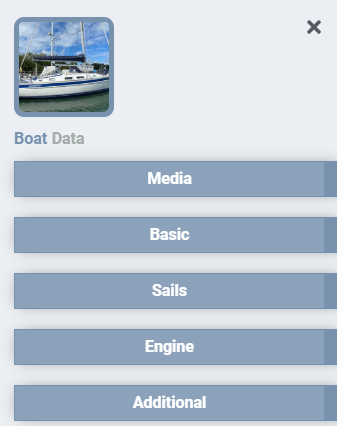
Steps 5–6Choose Media
A menu opens along the right-hand side. Click Media — the first entry.
Fill in what you have
You do not have to use every field. Add what you have now, and come back for the rest whenever you like.
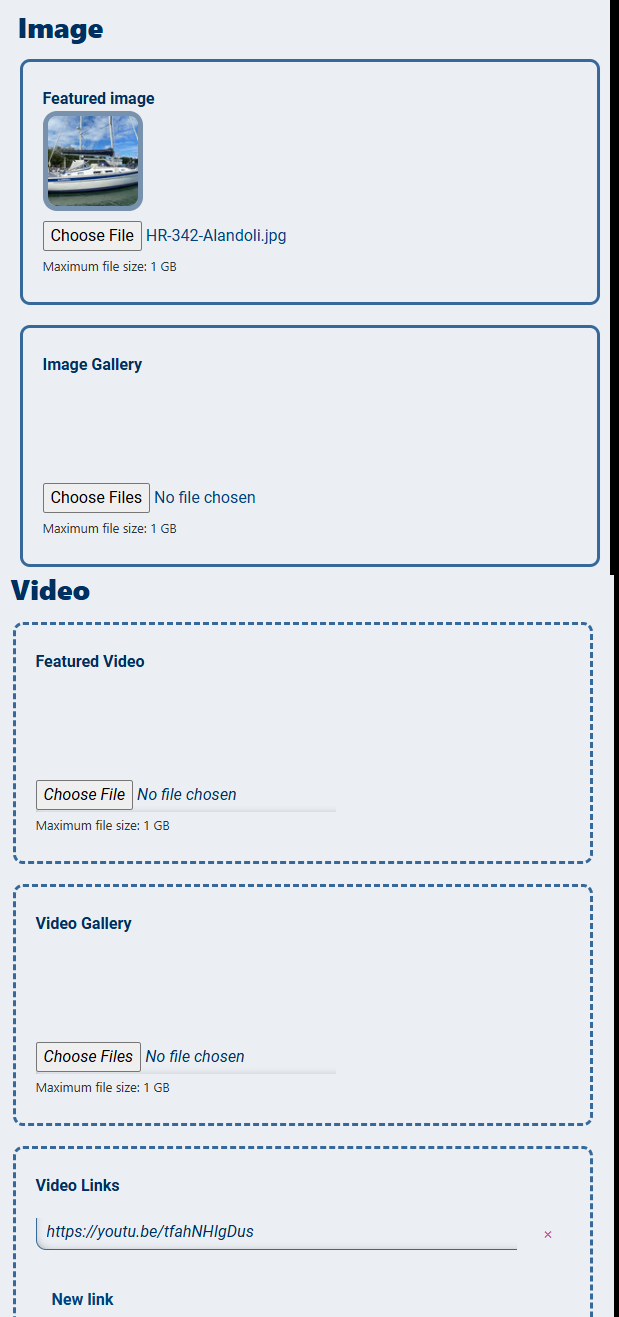
What each field does
Five fields, five different jobs.
Featured image
Her main picture. This is what shows on the boat lists, in search results and when someone shares her. One photo — choose the best one you have.
Image gallery
Everything else. Deck, cockpit, saloon, galley, engine, chart table. Select several files at once.
Featured video
One video file uploaded from your own device, shown as her main clip.
Video gallery
Further video files, uploaded the same way.
Video links
The easy one. If there is already a video of her on YouTube — your own, or a broker's walkthrough — paste the address here. Nothing to upload, and it plays straight on her page. Click New link to add more than one.
Pictures that do her justice
You do not need a camera. You need daylight and a few minutes.
Shoot her from the water if you can
Under way, or from a dinghy or the far side of the harbour. A boat photographed from the pontoon always looks smaller than she is.
Tidy up first
Fenders in, lines coiled, sail covers straight. It takes five minutes and it changes the whole picture.
Go below in daylight
Open the hatches, turn the lights on, and shoot from a corner so the saloon looks its full size.
Include the working parts
Engine, chart table, galley, heads. These are the pictures other owners actually study.
Questions
The ones that come up most often.
Do I have to add everything at once?
No. Add the featured image today and come back for the gallery another day. You can change anything on this page as often as you like.
Can I change the featured image later?
Yes. Go back to Manage boat, then Media, and choose a different file. The new one replaces the old.
Do I need to upload a video, or can I just link to one?
Either. If the video is already on YouTube, the Video links field is far simpler — paste the address and you are done. Uploading is for video you hold as a file.
Who can see my pictures?
They appear on your boat's page in the HR-Club community, alongside her specification.
What if my boat is not in the database yet?
Add her from your Cockpit first, under My boats. Once she exists, Manage boat gives you this Media page.
Ready to add them?
If anything is unclear, write to me directly — I read every message.